
Recently, Figma launched its MCP server, opening up a new way for AI agents like Claude Code to interact directly with the design environment. I wanted to try it out, but more than just using it, I was curious about what was actually happening behind the scenes.
When tools feel a bit magical, there’s usually a clever architectural idea hiding underneath. To experiment with it, I used a small e-commerce app I built with Next.js and Hygraph (using the Hygraph MCP btw). I wrote about how I built it on their blog.
Now I wanted to move the UI into Figma. This workflow has quietly become the norm for a lot of teams building with AI-assisted development. In our case, while building Spidra, we've noticed a recurring pattern in how things evolve:
- We use AI agents to help generate ideas, layouts, and rough interfaces.
- Our designers take those ideas and turn them into something that actually feels intentional and usable.
- We then implement the refined design.
What’s been missing in this loop is a smooth bridge between the running application and the design tool. This is exactly where the Figma MCP becomes interesting.
With it, you can capture a live web page and convert it directly into a Figma design with no manual recreation. Just the actual UI translated into editable design layers.
But that’s not really the focus of this article. Before even trying it, I found myself wondering “what actually happens behind the scenes when a live website turns into a Figma design?”
Surprisingly, I couldn’t find a clear explanation of how the process works. After running the workflow myself and watching what happens step by step, the architecture started to make a lot more sense.
I’m sure the full implementation inside Figma is far more sophisticated than what I’ll describe here, but the process becomes surprisingly understandable once you look at the pieces involved.
The architecture behind the capture process
Having seen the whole thing run, I think I can say the capture process involves four main pieces working together:
- The AI agent
- The Figma MCP server
- A browser capture script
- Figma’s backend conversion pipeline
What initially feels like a single action of me typing “export this page to Figma” is actually a small orchestration of steps happening across these components.
When I asked the agent to export my running Next.js application to Figma, the first thing it did was talk to the Figma MCP server to create what’s essentially a capture session.
This session produces a unique capture ID, something that looks like a UUID. That ID represents a temporary request.
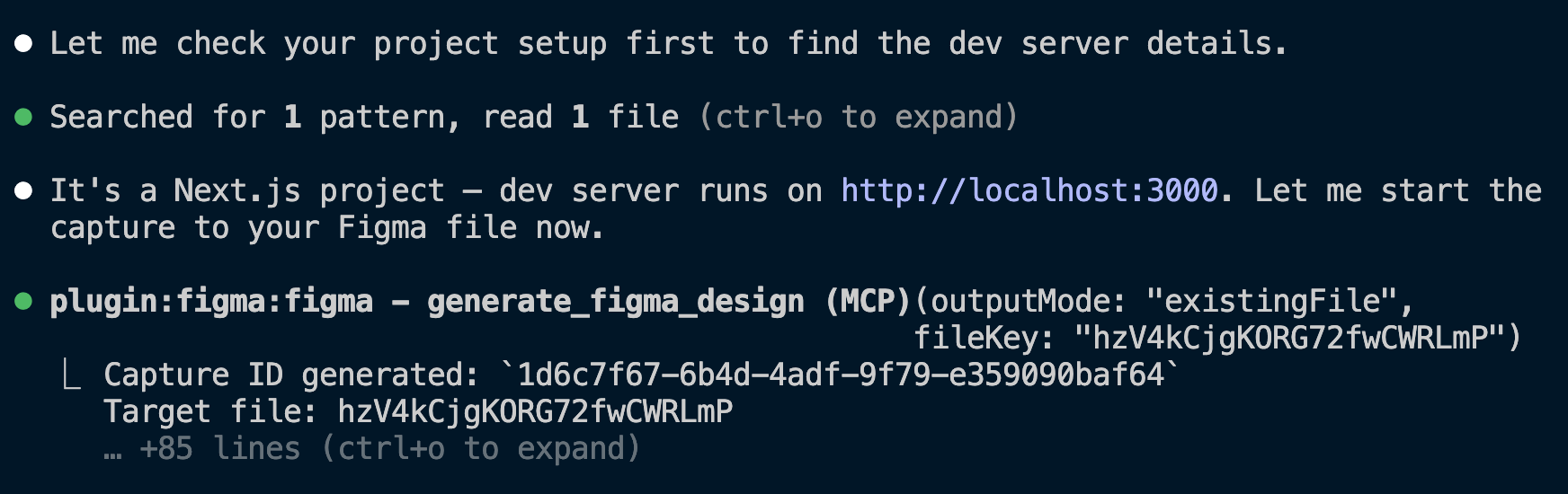
Once that capture session exists, the rest of the process moves to the browser.
The capture script
I then noticed that the capture needs a small helper script for the browser to work. In my case, the agent automatically injected a browser-side capture agent script into the Next.js document file.
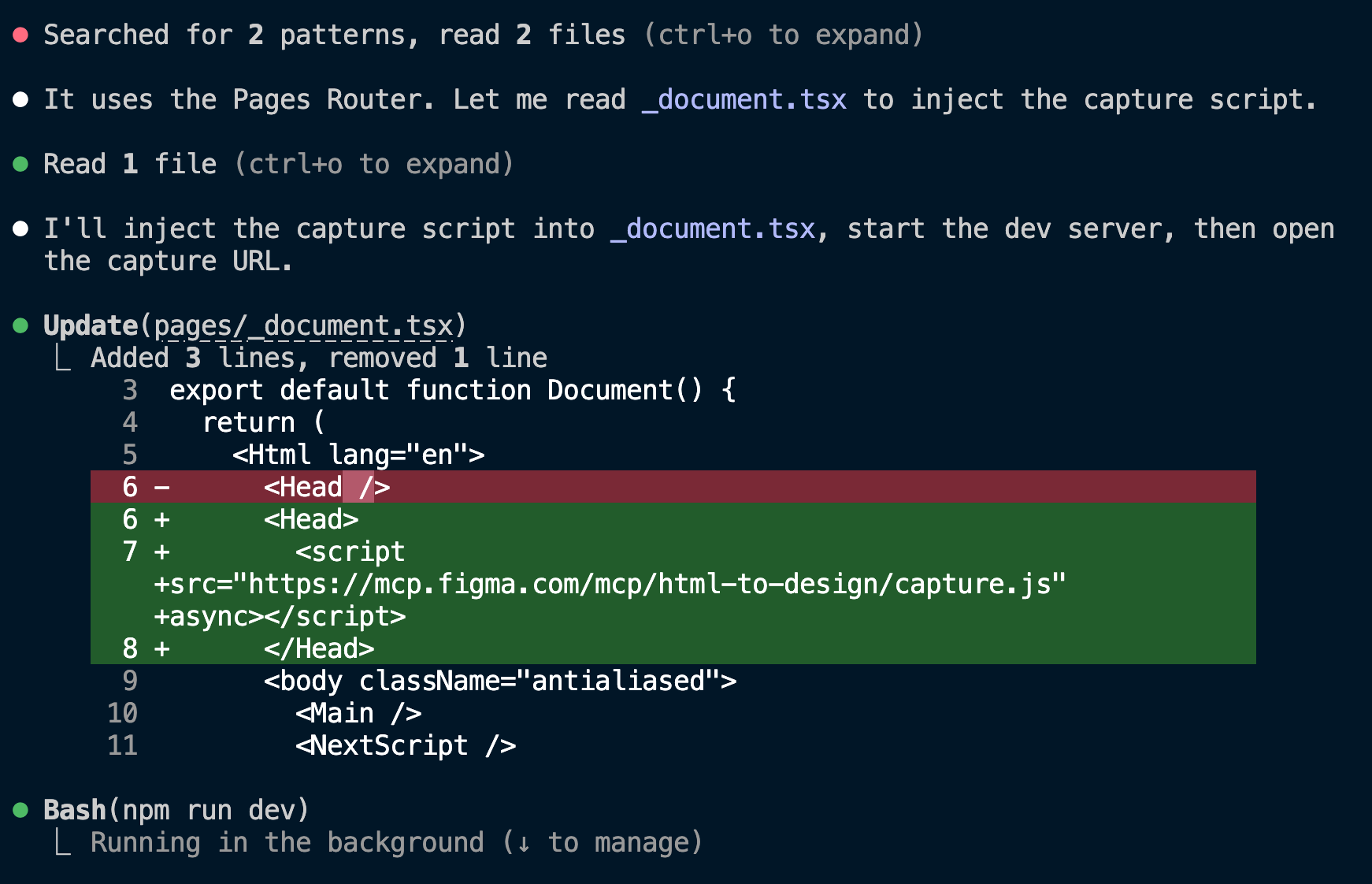
It sits quietly on the page until a capture request is triggered. Instead of needing a browser extension or special configuration, the capture script simply watches the URL hash.
When the page is opened with something like #figmacapture=<capture-id> in the URL, the script wakes up and begins the capture process.

Upon opening the URL, the script begins inspecting the rendered page. You will see a small toast showing “sending to Figma,” and then, when it’s done, you will see “Sent to Figma”. You can then check Figma, and voila, it’s there.
This is a clever design choice in my opinion because it means the workflow works with any running website (local development servers, staging environments, or production sites) without requiring deep integration.
Capturing the rendered DOM
The key idea behind the capture process is that it does not try to understand your application code, parse React components, inspect JSX, or examine your framework. Instead, it captures what the browser has already done, which is the fully rendered DOM.
By the time the capture script runs, several things have already happened:
- Next.js has rendered the page
- data from Hygraph has been fetched
- the browser has computed layout
- styles have been applied
- images have loaded
At this point, the browser has a complete representation of the UI. The capture script walks through the DOM tree and collects things like:
- element structure
- computed CSS styles
- layout positions and dimensions
- typography and fonts
- images and background assets
- SVG elements
- shadows, borders, and radii
This is why the approach works well even for dynamic pages. In my case, the /products page pulls product data from Hygraph and renders cards dynamically. By the time the capture script runs, those product images, titles, and prices are already part of the DOM, so they get captured naturally.
The script isn’t interested in how the page was built, only what the browser ended up rendering.
Converting the page into Figma nodes
For this, I did a little research and noticed that when Figma receives the capture payload, it needs to translate the web structure into a format that fits its internal design model.
In practice, this means mapping common HTML constructs to their closest Figma equivalents. For example:
| Web Element | Figma Representation |
|---|---|
| div containers | frames |
| images | image fills |
| text elements | text layers |
| flex layouts | auto layout frames |
| box shadows | drop shadow effects |
Layout properties such as padding, spacing, and alignment often translate fairly well into Figma’s auto-layout system, which is why the resulting designs remain editable rather than being flattened.
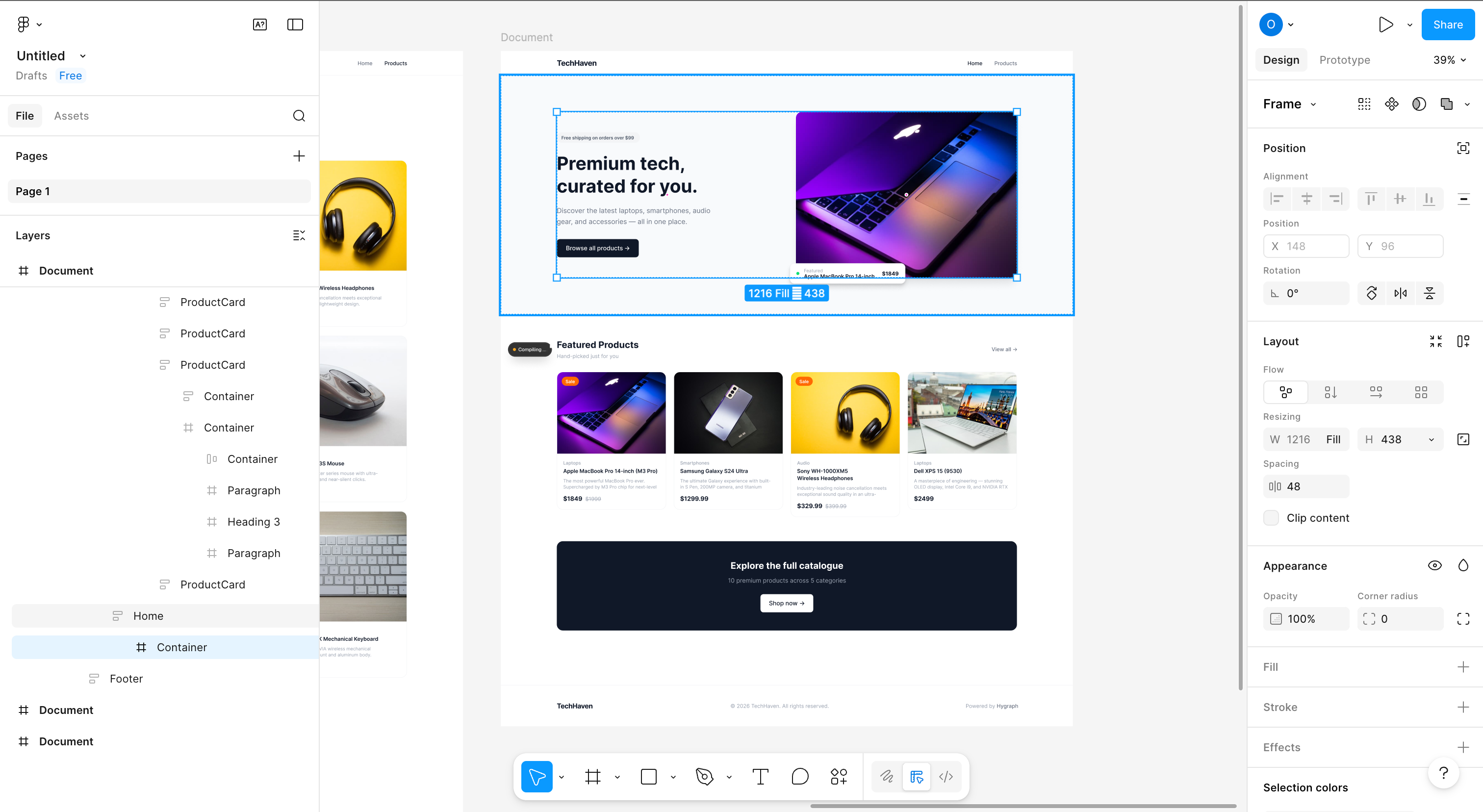
Images are resolved using the URLs captured from the page, which is why assets from my Hygraph CDN appeared correctly in the resulting Figma file.
Once this translation is complete, the generated node tree is inserted into the specified Figma file.
Closing thoughts
After experimenting with the workflow, what initially looked like a bit of magic started to feel more like a well-designed pipeline:
- A capture session gets created.
- The browser serializes the rendered page.
- Figma converts that structure into editable design nodes.
There are undoubtedly deeper layers inside Figma’s implementation than what I’ve outlined here, but understanding the core mechanics makes the process feel much less mysterious.
As MCP servers continue to appear across tools like design platforms, CMS systems, and development environments, we’re starting to see a new kind of workflow emerge, one where AI agents orchestrate tools across the entire product lifecycle.


